



Your business card says more than you think. A few months ago, I was pitching a product design concept. Nothing fancy. Just a short session, a few slides, and a lot of polite nodding. One man left early. He didn’t say much. Just tapped his phone to the NFC card I’d handed her on the way in. That was it.
That evening, he replied with a full investment offer. No follow-up calls. No long deck. Just one tap.
His message started with seven words I’ll never forget: “This is the best business card I’ve seen.”
That was the moment I realised something had fundamentally changed.
Business cards used to be static and forgettable. Now they’re alive. They link to video, voice, work, story. They’re not just a small square of cards anymore. They’re a first impression that speaks louder than your actual pitch.
AI is what helped me build it.
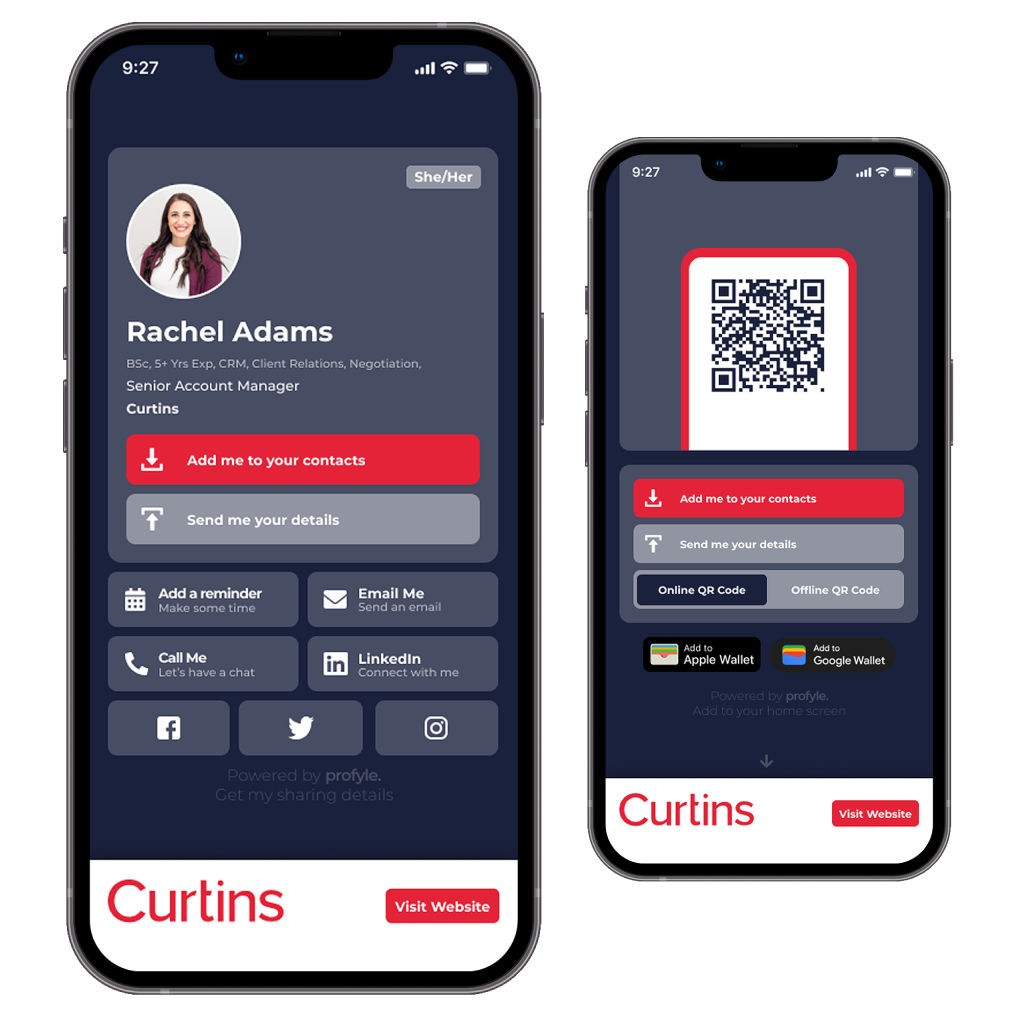
Why waste paper when you can share something smarter? Profyle creates digital business cards that help you make a better first impression, sustainably. Create your design with AI and then bring it over to Profyle. Start with a free Profyle Card
Visual memory is about six times stronger than verbal recall, according to new research in design psychology. That means the look and feel of your business card matters more than most people think. It’s not about being fancy. It’s about being memorable.
This guide will show you how to use AI to create a card that speaks clearly, looks sharp, and works as both a digital and physical Profyle Card. You’ll learn:
The tools are simple. The effect is powerful.
Let’s begin.

I remember staring at my old paper business card design one evening. It looked okay. But I couldn’t tell if it felt fresh or boring. Then I fed my details into an AI tool. Within seconds I had three distinct styles, with layout, colour, and font all done neatly. They looked smarter than what I had before.
You don’t need design skills to get a card that looks sharp. AI tools give you ready-made layouts, choose fonts that match your tone, suggest colours that feel right. They let you generate ideas fast and play with versions at ease. This saves time and gives you choices you might never think of.
Design psychology tells us that human memory favours images over words—it’s called the picture superiority effect. That means a card that looks good sticks in someone’s mind more than a card that just lists details. AI helps craft a card that grabs visual memory, not just scrolling eyes.
When your card looks tidy and clear, people think you are organised and confident. AI helps with layout hierarchy. Placing your name where it should go, your logo visible but not loud, contact info easy to read. This taps into the principle of authority, you look credible when your card looks clean and professional.
AI acts like a co‑creator, not a replacement for a designer. It gives you a starting point. You refine with your insight. Plus, you can hire a professional designer later, if the need arises.
But it is a good starting point because AI adapts to your style and brand tone. Even if you’re not a skilled designer, AI helps you look like one.
People form first impressions of designs in under 50 milliseconds. That means your business card either catches their eye or it doesn’t, and fast.
AI tools can help shape a card that looks and reads well. Here’s what works:
AI design helpers save the effort. They:
All of that uses ideas proven by father time and research:
Once an AI gives you options, check:
When you pick the final version, move on to adding your links or media for digital format.

When I first started using AI to design cards, I noticed most tools were helpful, but only if I gave them the right prompts. Generic inputs gave me bland results. But the moment I described tone, feel, and purpose clearly, the AI started offering layouts that felt like something a real designer made.
Paste this into ChatGPT or your favourite AI copy tool:
Write short and clear text for a business card. The person is a freelance UX designer based in London. The tone should be friendly, confident, and professional. Use British English. Include:
Make sure it fits on a business card layout, with priority on the name and job title. Make it sound trustworthy and modern. Do not use buzzwords. Use simple, direct language that feels personal.
You can replace “UX designer in London” with your own role, tone, or industry (e.g. sustainable architect, finance director, etc.).
Paste this into an AI design generator like Canva AI or Looka:
Create a business card layout that is clean, modern, and minimalist. The card should follow this structure:
Use CMYK colour mode. Avoid fonts smaller than 9pt. Make sure all text is within the 5mm safe area. The card should have white or neutral background with one highlight colour (dark blue, forest green, or rust red). Design must follow print-ready format and Profyle layout standards.
Export result as PDF/X-4:2008 with 300dpi, no crop marks, and no transparency under 20%.
These instructions mirror Profyle’s print and digital card requirements, so your design can be used both online and printed as an NFC business card, when ordering them from us.
Generate 3 versions of a business card for a branding consultant named “Anita Rao.”
Include clear hierarchy: name stands out, job title smaller, contact info aligned right. Keep visual balance and use spacing carefully. All must be printable using CMYK and should work with a QR code added on the back.
Great for testing different moods without starting over from scratch.
I’m designing a business card with clean space, bold font, and forest green highlight. Please rewrite my info in a short and confident way that matches this tone. Make sure it sounds trustworthy but not too stiff. British English only.
You can reuse this structure anytime your design changes. Just update the visual cues (like colour or font type) in your prompt.
Act as a professional print designer. Review this business card layout before sending it to print. Check for:
Assume the file is going to be printed via Profyle and follows the safe zone and bleed rules. Tell me if there are issues or risks.
Use this right before you export your card. Helps avoid nasty surprises at the print stage.
Ready to bring your design to life? Sign up for a Profyle Card account for free

I tapped my NFC card for the first time and my digital business card popped up in under one second. It felt like I’d just unlocked a mini website with everything about me—all with one tap.
Reports show people are 40% more likely to engage with a contact when they can access more than just name and email at the first glance.That short tap led to video, links, portfolio: everything visible instantly.
With Profyle, your brand stays familiar across touchpoints, and people feel more comfortable sharing back when your business card feels polished.
I held the printed Profyle card in my hand for the first time and thought, “This feels like tech dressed in a tailored suit.” It wasn’t just a pretty piece of plastic. It was smart, sharp, and worked with one tap.
Even with all the buzz around digital tools, 63% of people still say they trust printed materials more when making first contact in person. A NFC business card from Profyle isn’t just your backup, it’s your silent opener. The feel of a high-quality print leaves an impression before you even speak.
With Profyle, that printed card becomes an NFC tap card and a scannable QR access point. You get the best of both.
But to get there, your design has to be print-ready.
Profyle has very specific print requirements. AI tools can help with layout, but you must guide them clearly. Here’s what to double-check:
Printers work with CMYK (Cyan, Magenta, Yellow, Black). This gives consistent colour reproduction. RGB is for screens and may cause dull or off-tone prints.
AI Prompt Tip:
“Design a business card in CMYK mode for print. Use forest green accents and white background. Save as PDF/X-4:2008.”
Blurry logos or jagged lines? Usually a resolution issue. Keep everything vector-based if possible.
Don’t send raw font files. Convert them to outlines in your final file to prevent misprints or font swaps.
Profyle’s exact guide shows this layout. Follow it.
Most AI tools now support built-in print margins—use the custom canvas options and set them manually if needed.
Leave the white box on the back untouched. That’s where Profyle places the dynamic QR code.
Leave it on. You can change the colour to fit your palette, but it must stay in its spot.
| Item | Check? |
| CMYK colour mode set | ✓ |
| 300 DPI or vector graphics used | ✓ |
| Fonts outlined | ✓ |
| 3mm bleed, 5mm safe zone set | ✓ |
| QR code space left untouched | ✓ |
| NFC icon in place | ✓ |
| File exported as PDF/X-4:2008 | ✓ |
Printed NFC business cards create a sense of presence and control. People remember how it felt in their hands. They tap it, and the digital card opens like magic. That’s the moment where form meets function, and Profyle handles both sides for you.
Start your card journey here: Sign up for a Profyle Card account for free
Recent design studies show that overloaded visuals reduce recall by up to 50%. Even if it looks “cool,” too many elements are worse than none. Clear beats cluttered every time.
Cluttered layout
Poor contrast or tiny text
Ignoring safe zones or bleeding rules
Over‑branding effects
Skipping the QR‑code space or NFC icons
Ask yourself:
Minimal mistakes make you look more professional. When someone taps your card, it should work fast, look tidy, and feel polished. This taps into authority and liking principles—there’s trust when things feel seamless, and preference when things feel personal yet organised.
| Risk to avoid | What you check for |
| Too many colours or effects | Simple highlight colour only |
| Small or light text | 9pt or above, good contrast |
| Ignoring bleed or margins | 3mm bleed and 5mm safe zone |
| Overwriting QR area | White box untouched |
| Invisible NFC icon | Icon visible, consistent spot |
Ready to create a business card that actually works? Sign up for a Profyle Card account for free
I once tried making a card in one tool and it felt basic. Then I switched tools and instantly had richer colour themes and more refined layout ideas. The choice of tool makes a clear difference.
A recent roundup of the top AI graphic design tools ranked Canva Magic Studio, Adobe Express (powered by Firefly), Designs.ai, Looka, and Kittl among the best for user-friendly creativity and print-ready output
| Tool | Standout use for cards | What to check for Profyle |
| Canva (Magic Studio) | Magic Design creates smart layouts and Magic Write helps with copywriting | Choose PDF export, set CMYK mode manually, add safety margins |
| Adobe Express + Firefly | Firefly design streamlines visuals, plus bulk editing tools via Bulk Create help batch export image | Export high-res PDF/X-4, verify vector text, outline fonts |
| Designs.ai | All‑in‑one brand kit generator with logo and card templates built in, easy to prompt | Confirm CMYK and bleed, then fine-tune layout tools manually |
| Looka | Great for fast logo and brand identity visuals, ideal if you want strong branding at start | Use the exported logo with another layout tool for full card formatting |
| Kittl | Strong vector design, style variations using AI flows, ideal if you want full layout control | Export as vector PDF, set bleed and margins, double-check fonts outlined |
Each tool supports exporting as PDF, but you must manually set or check CMYK colour settings and bleed areas. That makes your design compatible with Profyle’s print-ready layout rules.
And yes, this taps into both the principles of authority and consistency: when your visuals and fonts stay the same across platforms, people sense reliability, and trust grows.
I once tapped a card at a meeting and an entire team asked for theirs afterwards. They said it felt clever and different.
Profyle’s reviews are rich with praise. Kate at Curtins called the platform “easy to use, more sustainable than printed and reflect a digital‑first approach” and Helix Financial shared that it “works really well for us” and reflects great service feedback. Seer365’s Richard Hughes said working with the Profyle team was “flawless” and loved the quality product experience.
Many customers highlight how the visual design and ease pushed them toward using Profyle over other systems. One described Profyle as a “game changer” for their consultancy group, enabling people to showcase profiles and platform features with ease.
A small consultancy gave each consultant a Profyle card with a personalised front image. The card linked to case studies, client testimonials, and booking links. Prospects tapped and immediately saw a well‑branded mini landing page. They booked on the spot.
A carbon‑neutral business—oriented company used Profyle to support its ESG goals. They removed the need for paper cards and used branded digital cards linked to their sustainability reports. It matched their green identity and practice perfectly.
Someone at a LinkedIn‑focused meetup added their Profyle link—to their post, and to their card. Within days, four people booked calls through that link. That switch doubled their chances of converting new contacts into meetings .
When people see a card like that, it acts as social proof: others see it, remember it, and want to replicate it. When your business card feels professional, people trust you more. That taps into authority and liking at once.
Thousands already switched to Profyle for a smarter, cleaner way to connect. Request your free sample digital business card here.