Overview
Profyles can be secured using password protection. This means that when a Profyle is accessed (via a NFC tap, QR code scan or a shared URL), the visitor of the Profyle will need to enter a password in order to view the Profyle.
This can be useful if the Profyle contains sensitive information, or the owner of the Profyle wants to personally control which people are able to view their Profyle.
Securing a Profyle
To secure a Profyle, click “Edit Details” on the Profyle from within the “People” section of the admin portal.
Scroll to the bottom of the form and locate the “Password protection” section:
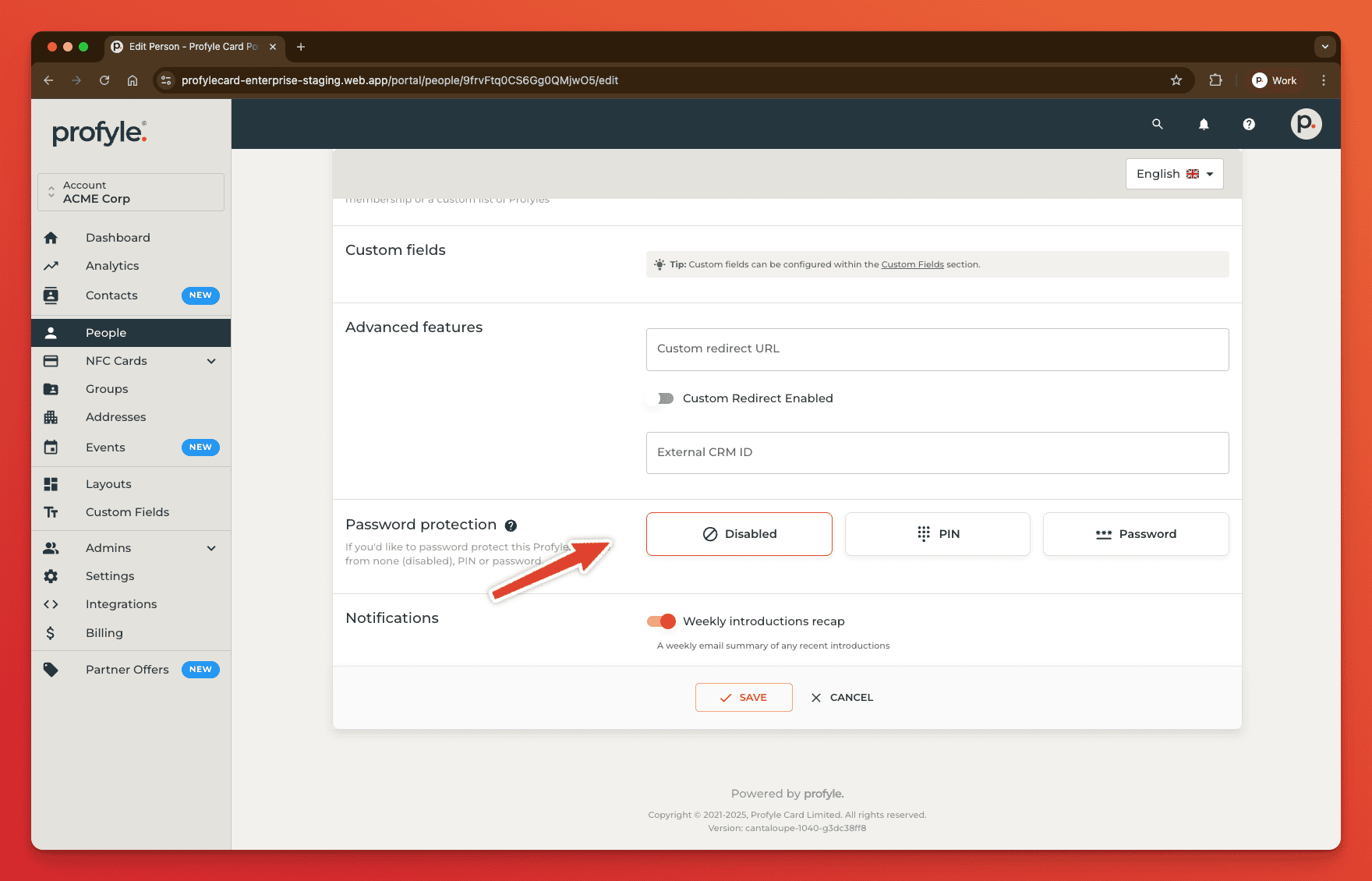
Select the type of password required (see below) and a text field will appear that you can enter the password into.
Click “Save”
Password options
Three Profyle protection options available:
- Disabled (default) – no password is required to access the Profyle
- PIN – a 4-digit PIN number is required to access the Profyle
- Password – a text password is required to access the Profyle
Accessing a secure Profyle
If a Profyle visitor attempts to access a secure Profyle, they will be presented with either a PIN or password entry screen:
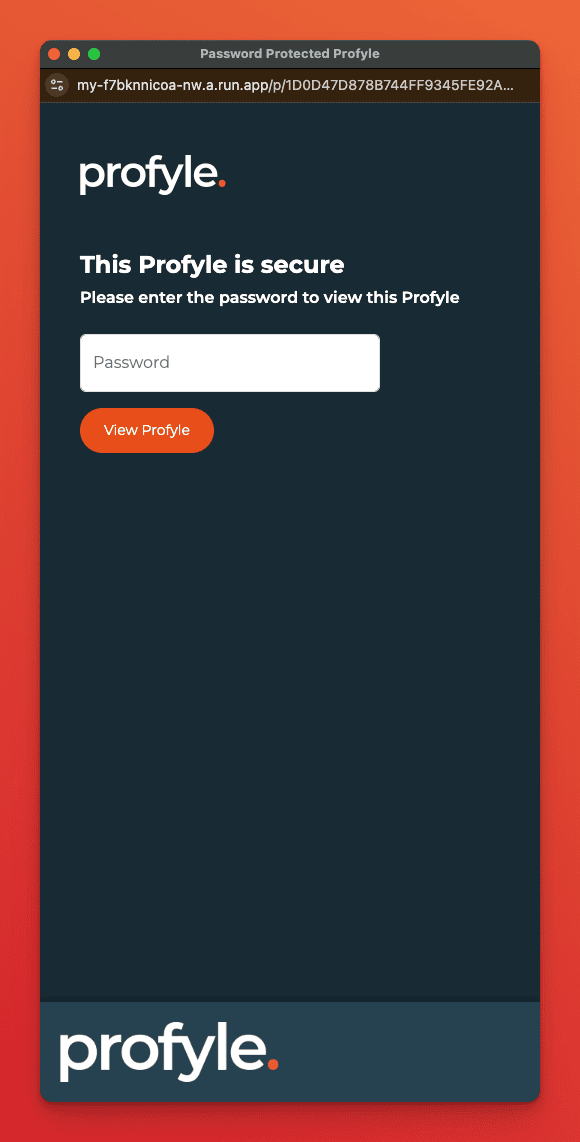
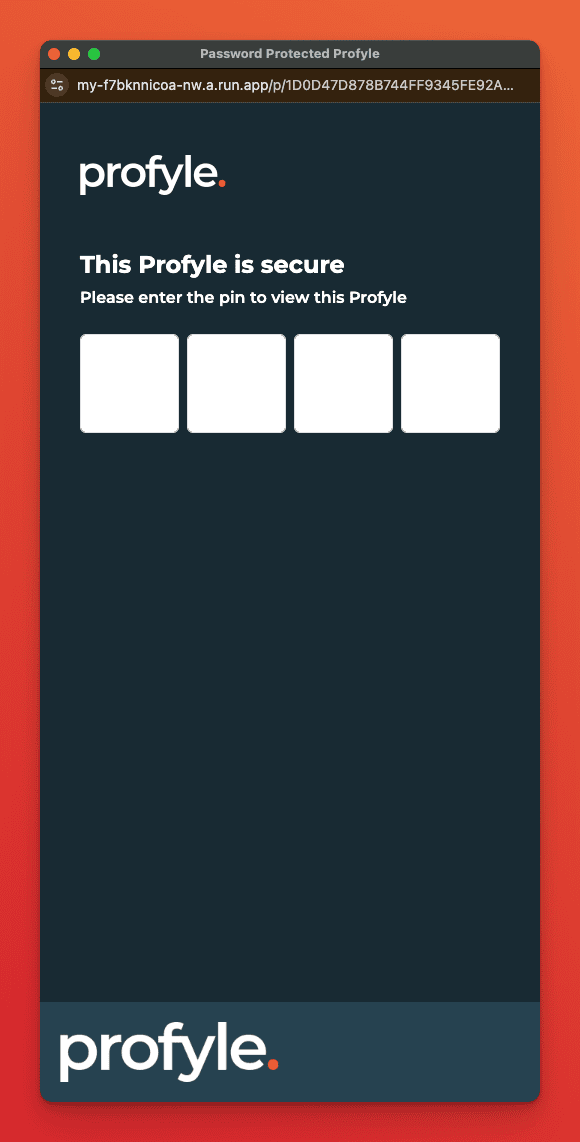
Entering the correct PIN or password will then take the user to the Profyle.
The Profyle page will be accessible for 30 mins, after which time the visitor would need to enter the PIN or password again to re-access the Profyle.
Note that the design of this page will match the Layout/branding of the users Profyle page.
Self-service
The password protection feature is available within the Profyle self-service portal and can be enabled/disabled by Profyle owners.