Overview
If enabled within Introduction Settings, an email is sent to each new Contact after the Introductions form has been completed. This email is sent immediately.
Email Content
The opening of the Contact Introduction email can be customised in a few different areas:
- For the whole organisation
- For each Group
- During an active Event
If multiple Introduction Email customisations are specified, the preference of the content will be as follows (first to last): Event, Group, and finally the organisation default.
Setting the organisation default
The default email opening can be updated from the “Introductions” tab within the Settings screen.
Note that this field accepts some basic HTML formatting like bold, underline, italic and hyperlinks.
Using variable placeholders
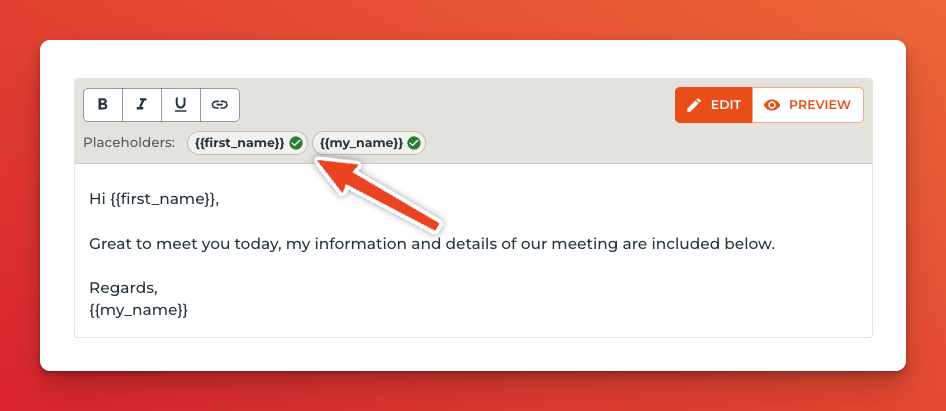
The email content includes a number of variable placeholders (using Handlebar syntax) that will be replaced by the relevant data when the email is sent. For email introductions, 2 variables are available for use:
-
{{first_name}} - the first name of the new Contact -
{{my_name}} - the first name of the Profyle that created the Contact
To insert a placeholder, simply type the placeholder (including the braces), or click the Placeholder to insert the tag at the current cursor position. Once a variable is present within the email, the placeholder will show a green tick to show its been used.
Preview content
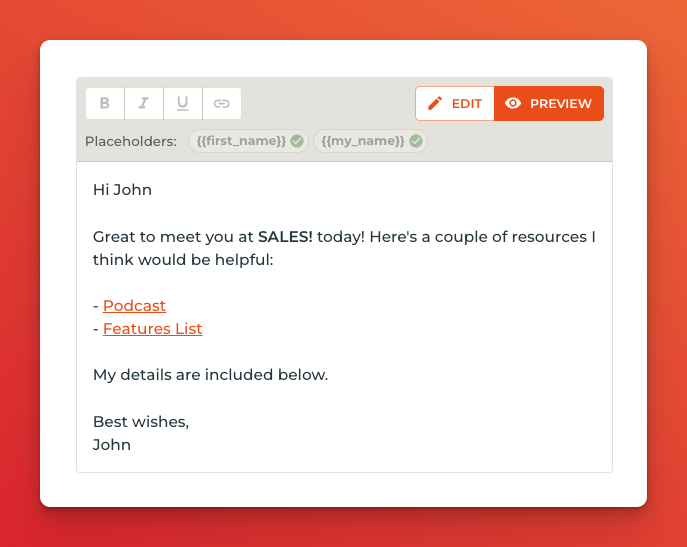
You can preview the content of the email including any specified styling by clicking the “Preview” button. The placeholders will be replaced with dummy information. The following example shows bold text and hyperlinks.
Setting for each Group
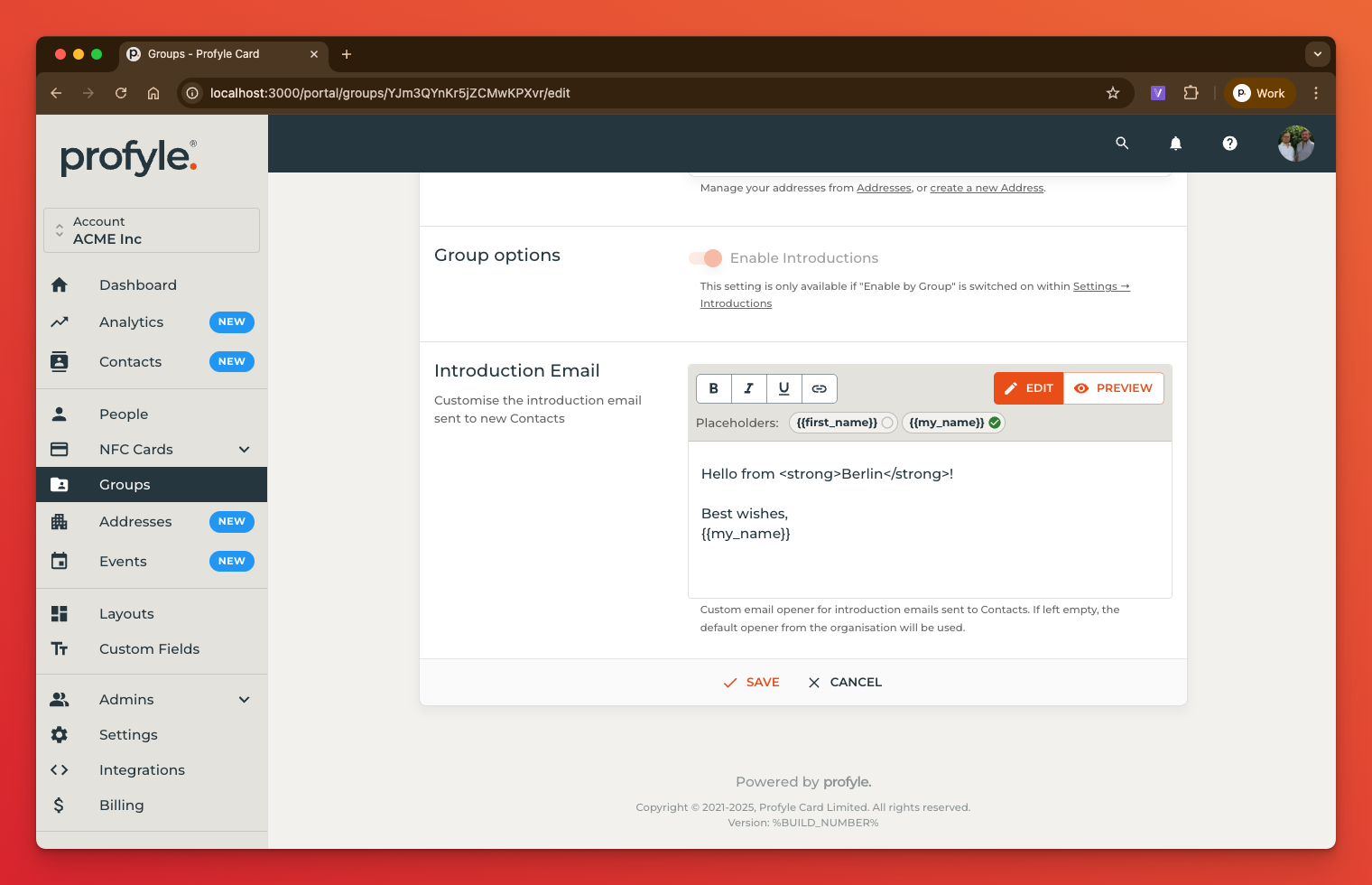
If you’d like the introduction emails for members of different groups to specify their own content, you’ll find the same editor within the Group edit screen:
Setting for the duration of an event
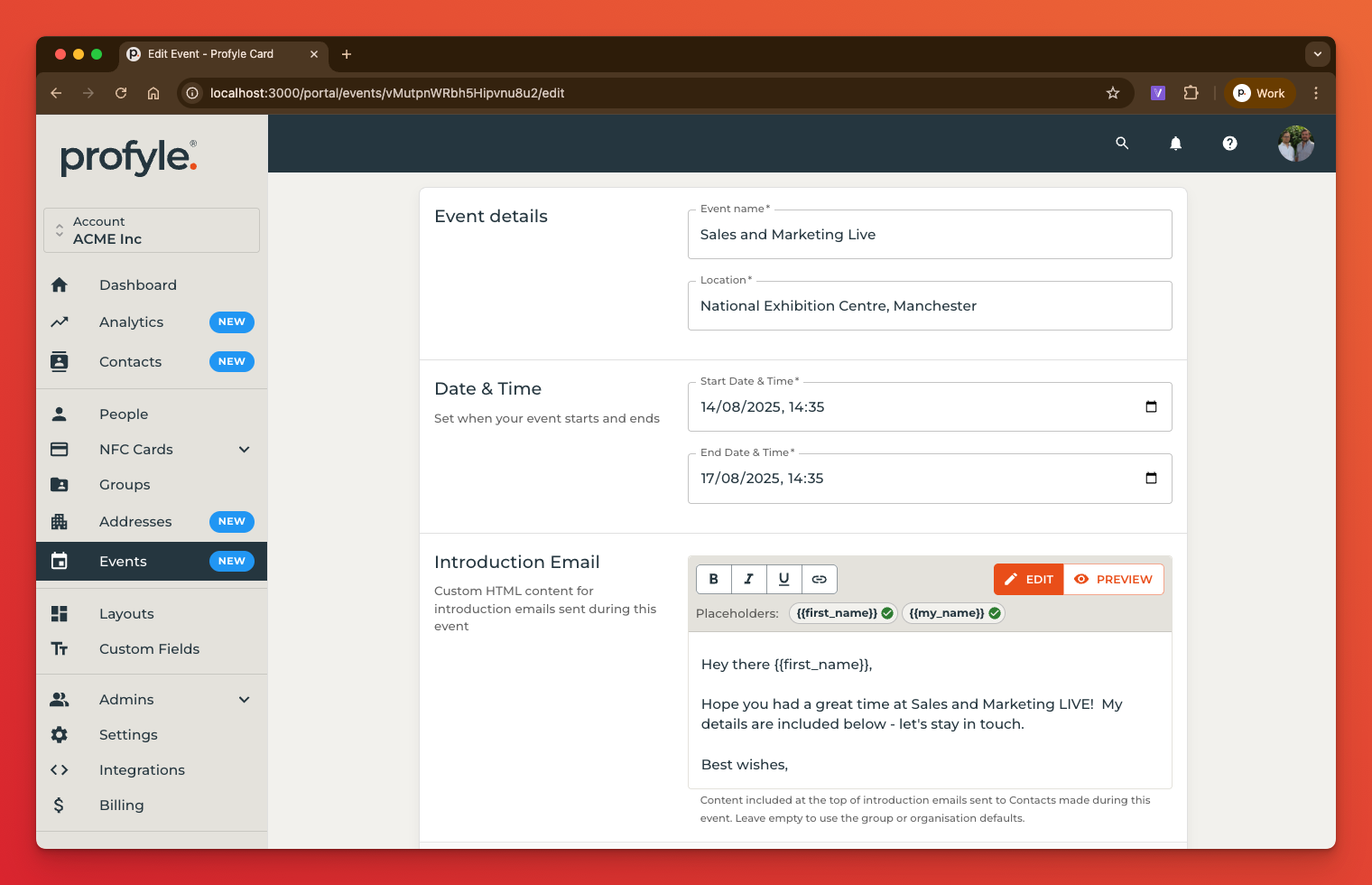
If you’d like the introduction email to be customised for the duration that your team is attending an event, create the event and set the introduction email:
Email Styling
The basic styling of the introduction email is automatically inherited from the Layout associated with the Profyle that created the introduction. You can preview what this might look like from within the Layouts section:
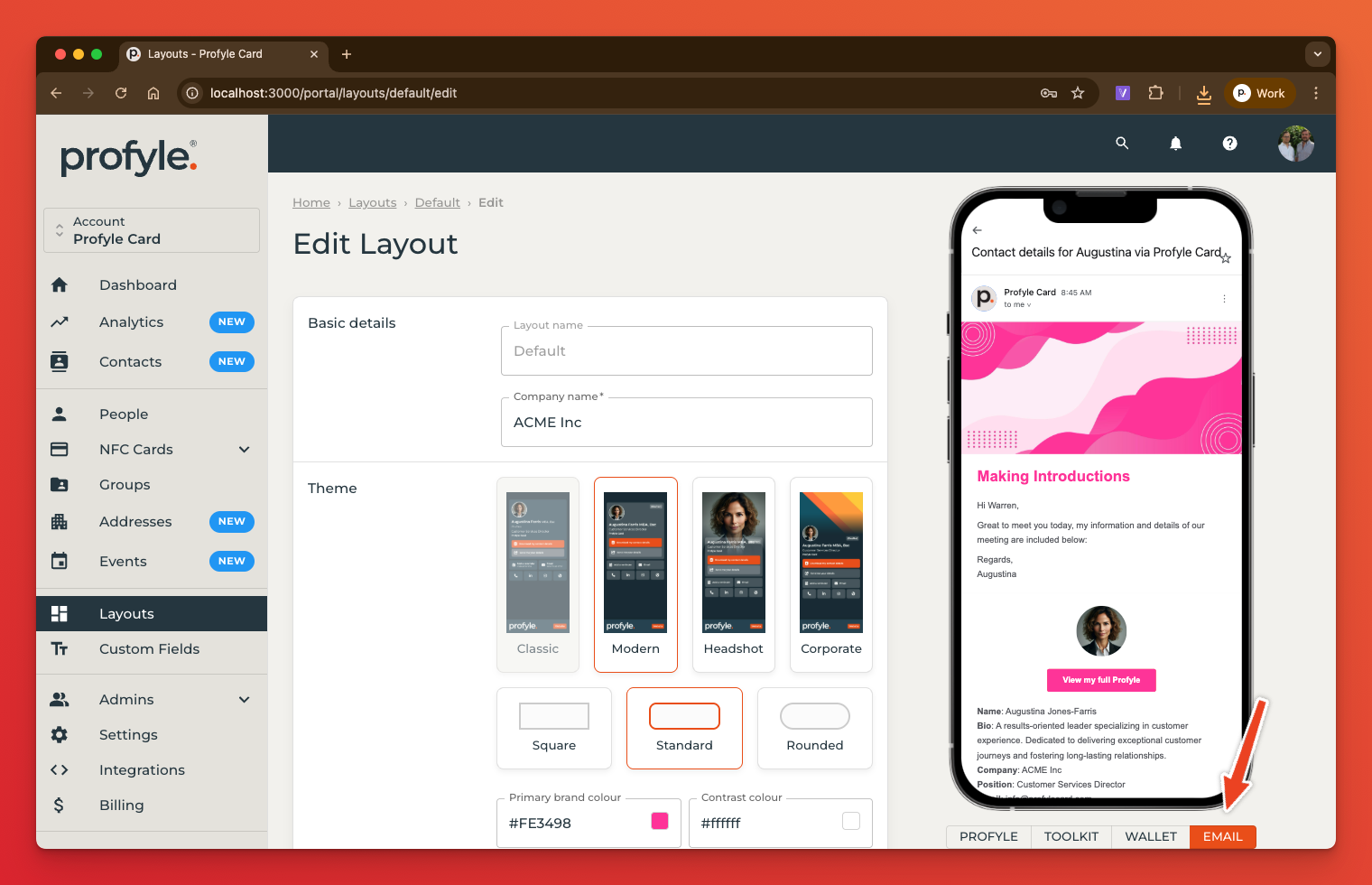
The styled elements of the email include:
- Header image (also used by the “Corporate” theme)
- Primary brand colour (in the above example. Pink)
- Contrast brand colour (in the above example, White)