Overview
The Events feature enables you to:
- Accurately track Contacts created at an Event and monitor marketing ROI
- Temporarily (for the duration of the event) override the introduction email that new Contacts will receive after completing the introductions form, for example, to provide Contacts with information relevant to the event
- Temporarily (for the duration of the event) override the Profyle Layout for all Profyles within your account.
Note that the temporary overrides for an Event will affect ALL Profyles within your account.
You can tell if an event is currently active, as a green banner will be displayed at the top of the Dashboard. Clicking this banner will show you the event and related details and Contacts.

After an event ends (and is no longer active), previous settings, Layouts and email introductions will revert to their defaults.
Viewing events
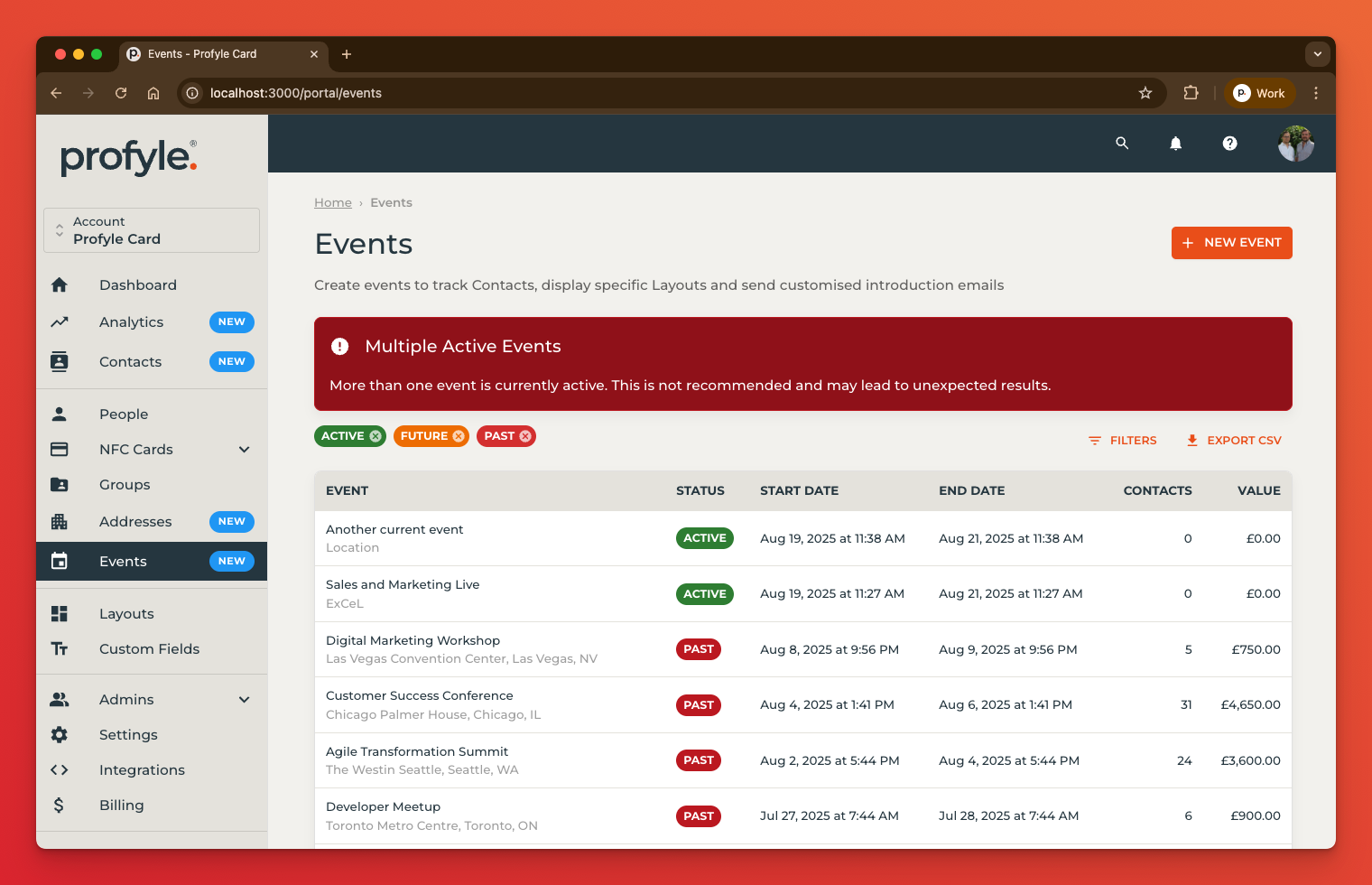
The Events link in the left hand menu will show you all events set up for your account, grouped by Active, Past and Future events:

You can filter this list to show any combination of Active, Future or Past events. Hide events by clicking the X by the event status, or by toggling the status from the “Filters” menu.
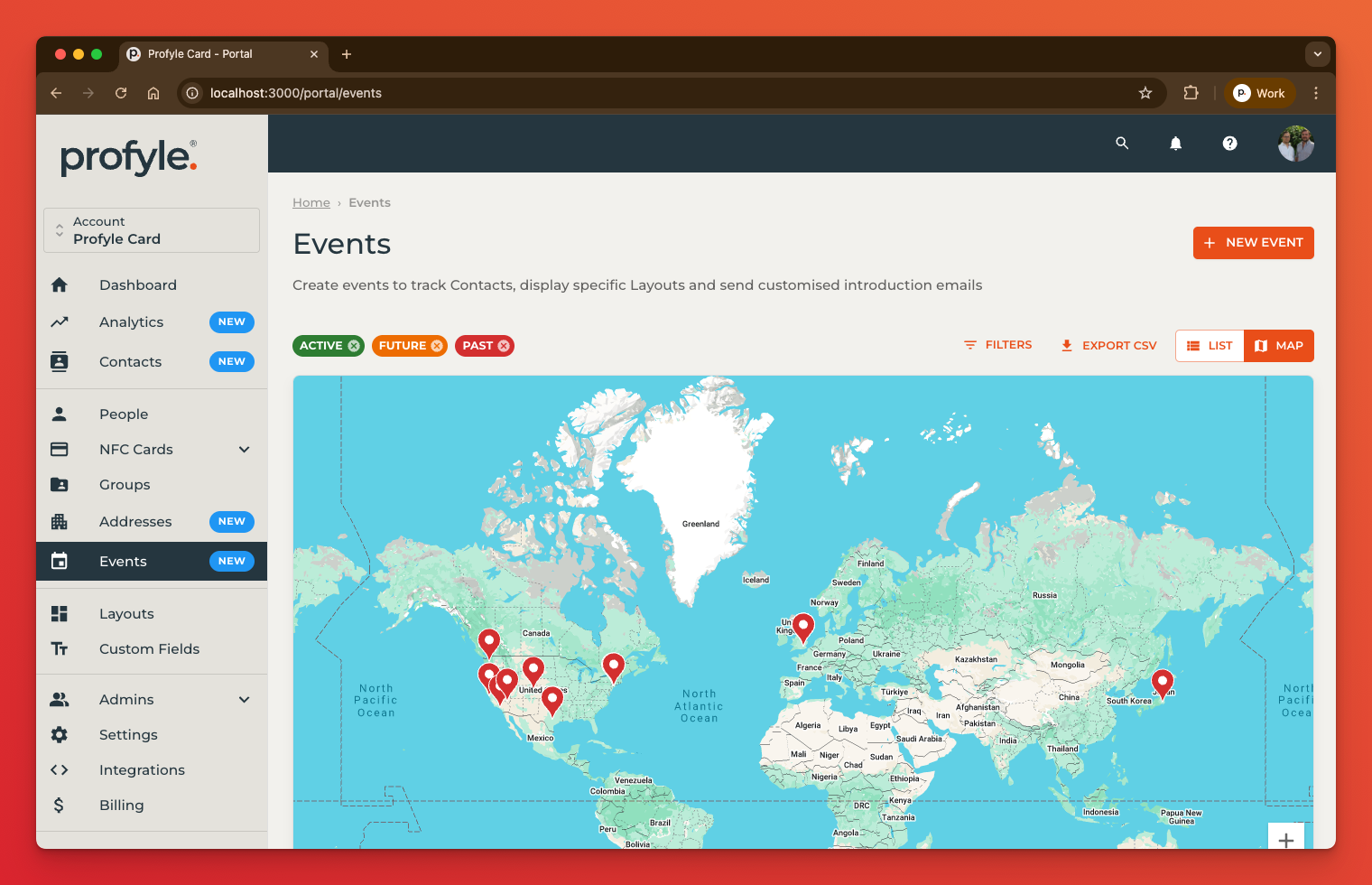
If you’d prefer to see your events on a map, select the “Map” toggle button:
Export the current list of Events by clicking the “Export CSV” button
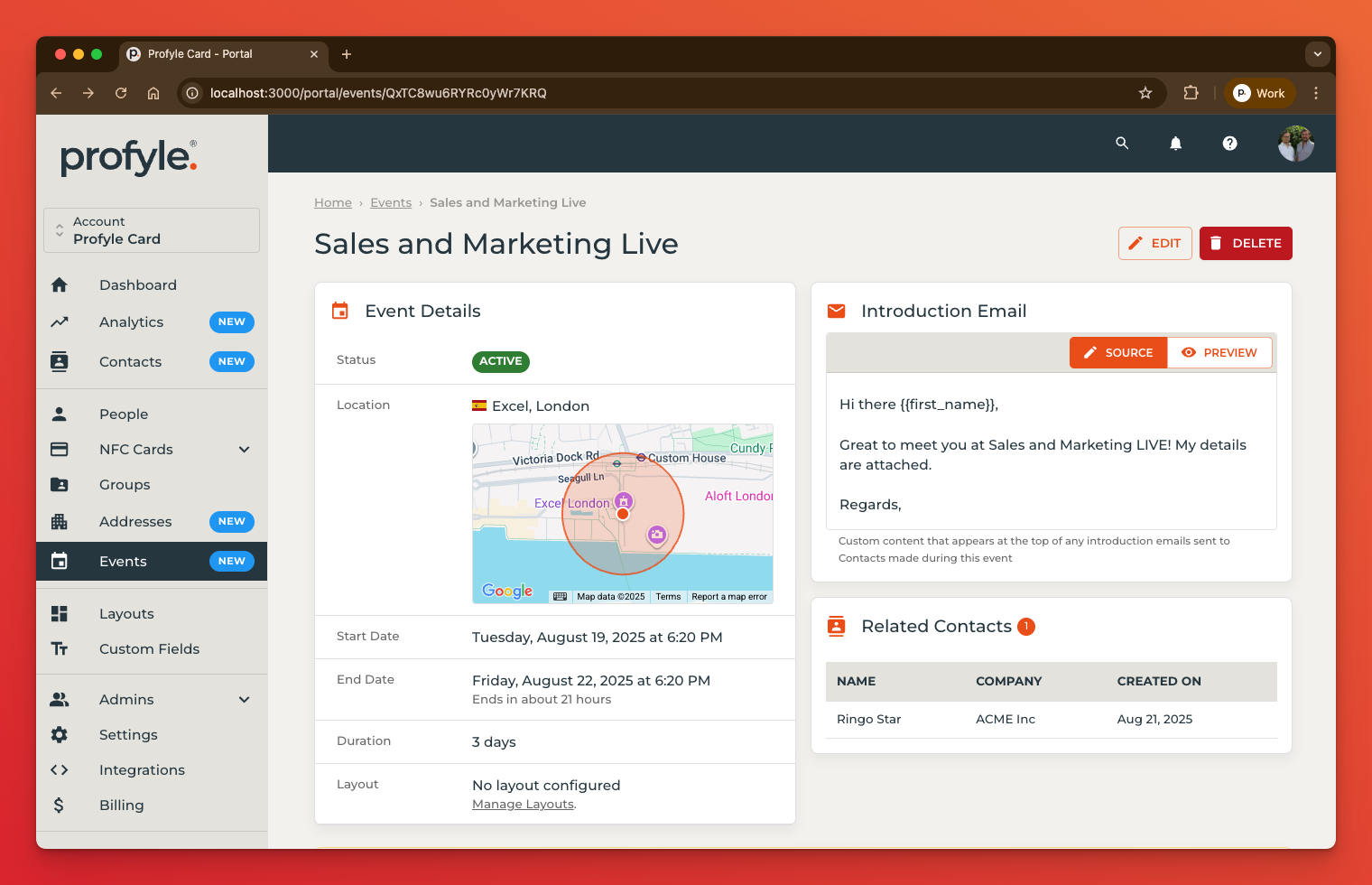
Clicking on any row within the table will show you the details for that event, and any related Contacts:
Creating and updating an event
Create a new Event by clicking the “New Event” button in the top right of the Events home screen.
Edit an existing event by clicking on the Event in the Events table and then “Edit” in the top right of the screen.
Events have the following information:
- Name (used internally to identify the event)
- Location (used internally to distinguish similar events)
- Map of location – after a location name is entered, the map will be searched and the relevant location shown. You can alter the location by dragging the map and change the size of the event area by zooming in and out. The map location selected will automatically set the country for the event.
- Start date and time – the time the event starts
- End date and time – the time the event starts
- Introduction email (optional) – an override for the introduction email opener
- Layout (optional) – an override for the Profyle Layout to use for all Profyles during the event
Related contacts
If an introduction takes place after the event start time and before the event end time (an active event), then the Contact will be associated to the Event. You can see all related Contacts for an event by clicking on the Event in the Events list.
The Events list also indicates how many Contacts have been created and the total lead value for the event.
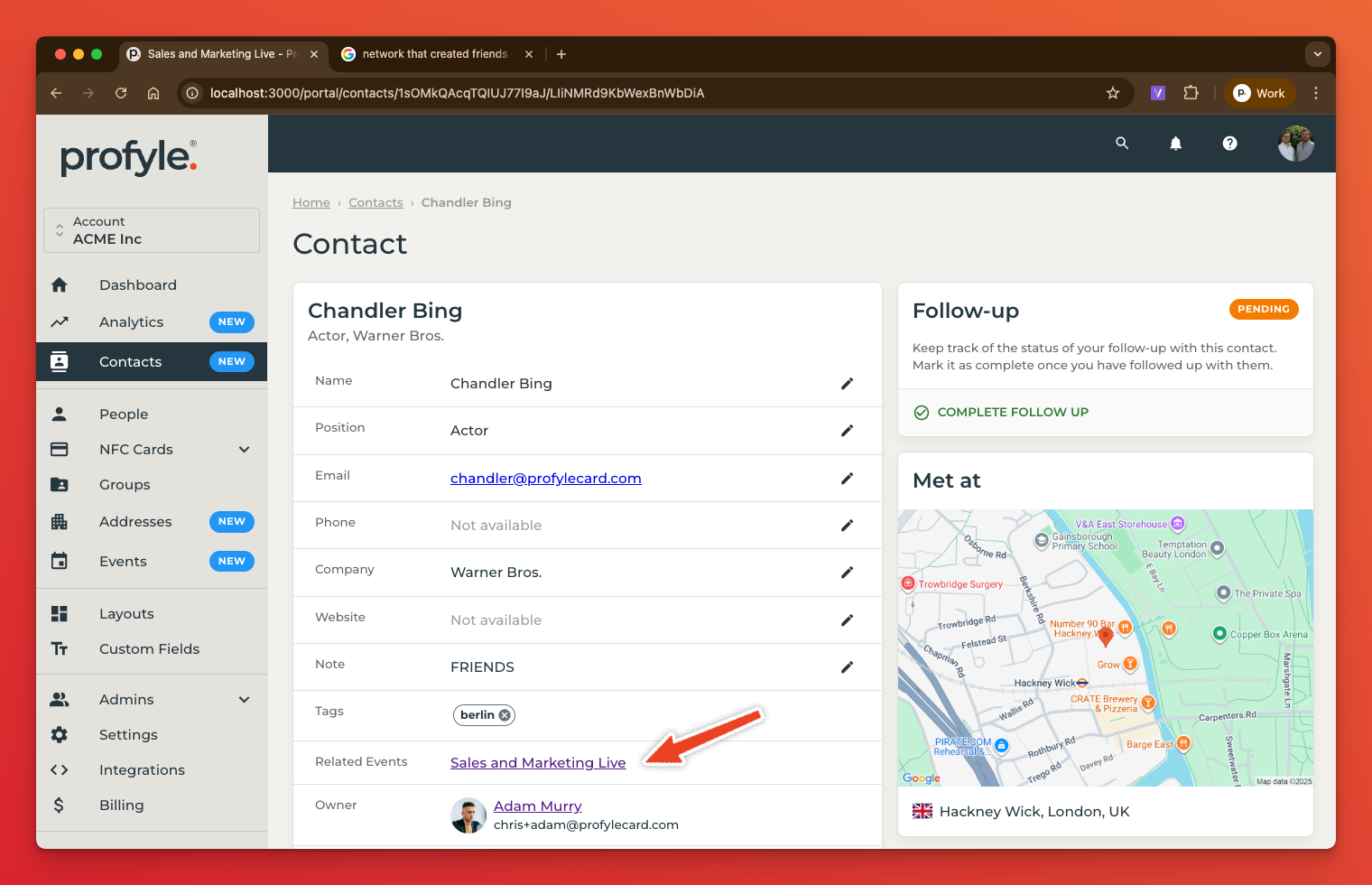
When viewing a Contact, if they are associated with an Event, this will be hyperlinked as in the following screenshot:
Multiple active events
Whilst it is possible to set up more than one Event which can be active at any one time, this is strongly discouraged as it will lead to unexpected results. If more than one event is active, a red warning banner will be visible on the Events and Dashboard: