Overview
The Profyle Card Pipedrive integration automatically creates Contacts, Companies and optionally Leads within your Pipedrive account when an Introduction is made using any Profyle Card within your account.
The integration can be enabled by any admin within your account that also has the permissions required to enable integrations within your Pipedrive account.
Installation
- Navigate to Integrations > Pipedrive Settings
- Click “Authenticate Pipedrive Account” and follow the on-screen instructions. You may be asked to select a Pipedrive account and to accept permissions for the integration to create Contacts and Leads within your account.
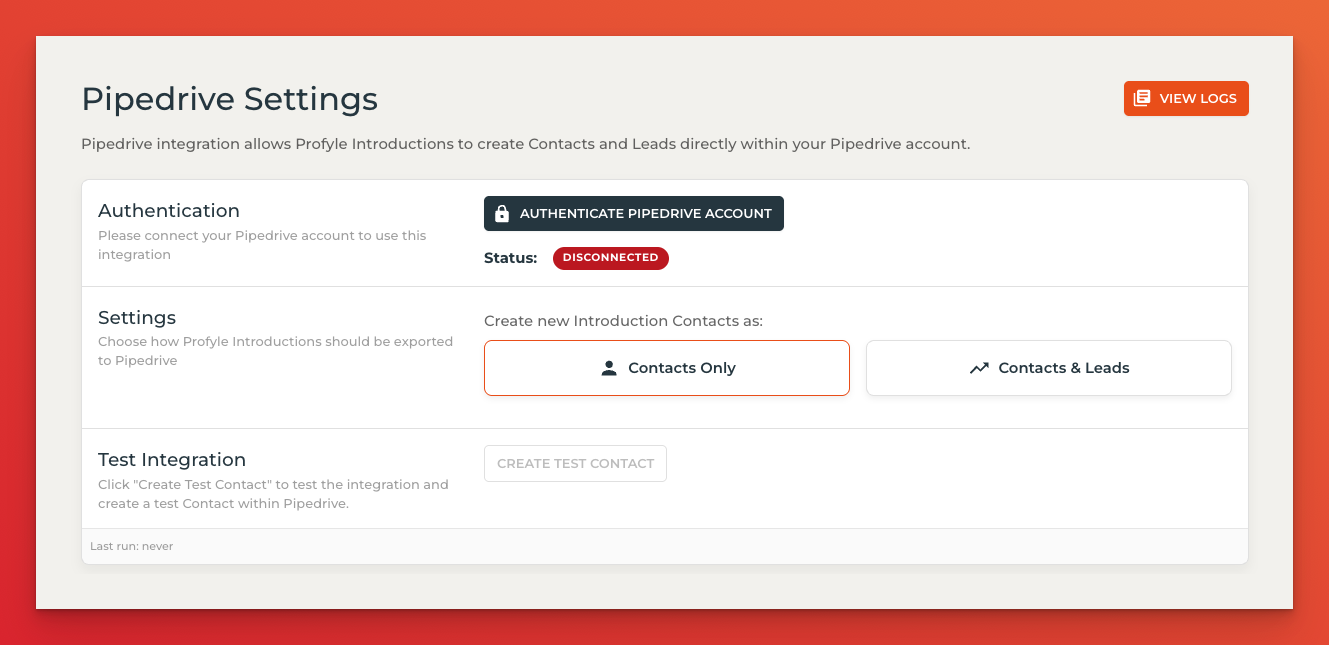
After connecting your Pipedrive account, you can test the integration by clicking the “Create Test Contact” button and then checking the Pipedrive integration Logs (View Logs) to ensure the records were created successfully. Please contact the Profyle Card support team if you are experiencing any errors.
Usage
Once the integration is authenticated with your Pipedrive account, Contacts and associated Companies will automatically be created when an Introduction is made using any Profyle Card within your account.
Before a contact is created, we search your CRM for an existing record (using email address). If an existing record is found, then a note will be added to the existing record (as below) rather than a duplicate record being added.
If you’d also like a Lead record added to Pipedrive (and the contact and company associated), select the “Contacts & Leads” option.
Notes
When a contact record is added, a note is also added to the contact including any notes made as part of the introduction, the name and location of the event they were met at (if available) as well as any custom consents that were collected.
Assigning Pipedrive owners to created Contacts and Leads
Owners can be automatically assigned to Contacts and Leads created from Profyle Card introductions, for example to automatically assign them to the Profyle Card owner, or someone else in your Business Development team.
To do this, you’ll need to know the Pipedrive Owner ID. These can be found within your Pipedrive account by:
- Navigate to “Manage Users” by clicking on your Organisation name in the top right
- Under the 3 dot menu on the right of each person, select “User overview”
- The Pipedrive Owner ID is the number that appears in the URL, for example:

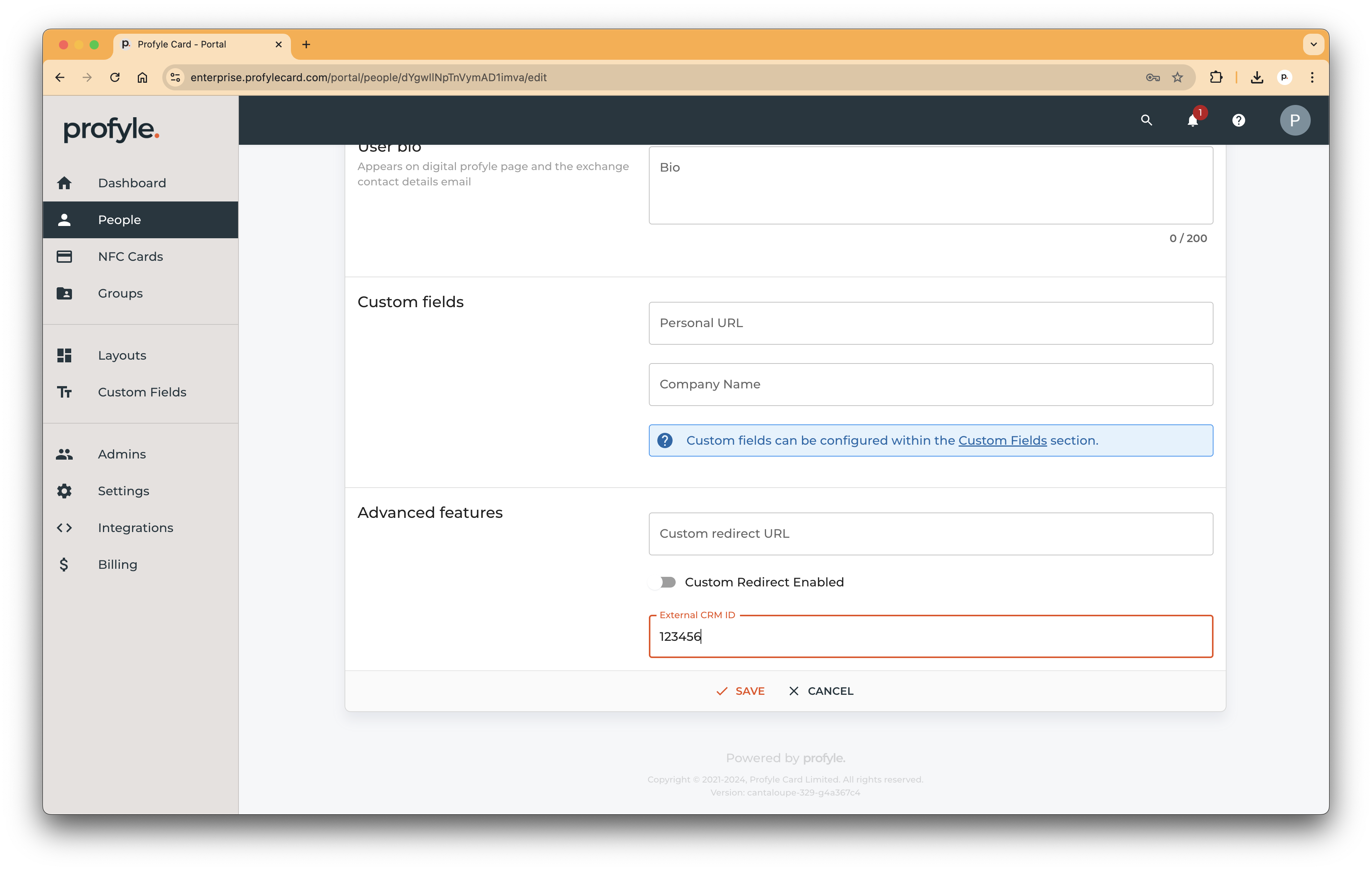
Once you know the Owner ID you’d like to associate with Introductions made by a Profyle, go to the Person details from within “People” and enter the Pipedrive Owner ID into the “External CRM ID” field which you can find within the “Advanced” section.